
Mapping Commands
Mapping is primarily done with two tools:
- The Sandbox Panel (default keybind
B) - The Console (default keybind
`, the grave accent /~key)
If either binding fails, check Esc → Options → Controls:
- User Interface → Open sandbox menu (default
B) - Development → Open Console (default
`)
Sol Mapping Server
Shared mapping for Sol runs on the Sol mapping server. Local/dev mapping is fine for solo experiments; use the Sol mapping server when collaborating or publishing maps for the team.
- Get permissions from Sol staff before using the mapping server.
- Get a login for mapdownloads.playsol.us so you can download existing maps.
- When you save on the mapping server, save under
/Maps/(for example/Maps/MyStation.ymlor/Maps/Shuttles/MyShuttle.yml). Files saved there appear on mapdownloads for others to grab.
You can use the console commands below on the Sol mapping server and on a local SS14 dev environment (except where noted).
Console command cheatsheet
| Command | Description |
|---|---|
readmin |
Re-admin yourself if you accidentally de-admin'd. |
setgamemap SolCork |
Force a game map for testing (use a Sol game-map id such as SolCork, SolSaltern, or SolReach). |
mapping 200 |
Creates a blank map with the given id (here 200). Map ids are session-local and arbitrary. You are teleported in as an admin ghost. Autosave starts on maps created this way; disable with toggleautosave 200 if it lags. |
aghost |
Become an admin ghost. Required to move on uninitialized (“frozen”) maps. Run this before loadmap. |
loadmap 100 /Maps/_Sol/Stations/Cork.yml |
Load a map file into map id 100. Paths are under Resources on local; on the Sol mapping server use paths under /Maps/ that match what mapdownloads expects. |
tp 0 0 100 |
Teleport to x=0, y=0 on map id 100. Use this to jump between loaded maps. |
savemap 100 /Maps/Cork.yml |
Save a station map. On the Sol mapping server, save under /Maps/ so the file shows up on mapdownloads. Locally, saves land under the server data directory (typically bin/Content.Server/data/). Always include the .yml extension yourself. |
savegrid [grid ID] /Maps/emergency.yml |
Save a loose grid (shuttle, wreck, etc.). Do not use this for full stations. Prefer /Maps/ (or /Maps/Shuttles/…) on the mapping server. |
mapinit [map ID] |
Initialize (“unpause”) a map. Never save an initialized map. |
colornetwork [pipe ID] Pipe #0055CCFF |
Recolor an entire connected pipe network (example: distro). The P in Pipe must be capitalized. |
colornetwork [pipe ID] Pipe #990000FF |
Waste pipe colour example. See also Pipe Dock Standards. |
fixgridatmos [grid ID] |
Rebuild grid atmosphere. Run after changing walls or floors, or new rooms can stay permanently spaced. |
variantize [grid ID] |
Randomize tiles that have variant graphics (asteroid sand, broken floorboards, etc.). |
sudo cvar net.pvs false |
Local only. Unlimited PVS / render distance. Save first — may freeze the client for several seconds. Does not work on the mapping server. |
Maps and grids
Maps are containers for grids:
- Can have a name (shows up in command autofill)
- Can have weather and global atmospheres
- Do not have tiles themselves
Grids live inside maps:
- Made of tiles; can have names and local atmospheres
- Can dock to other grids via airlocks with the docking tag
- Cannot have their own weather
A grid can move between maps via FTL. Example: a salvage shuttle (grid) starts on the station map, then FTLs to a separate expedition map.
savemap vs savegrid
- Stations are grids, but you save them with
savemap. - Loose grids (shuttles, debris, CentComm ships, etc.) use
savegrid.
The Sandbox Panel
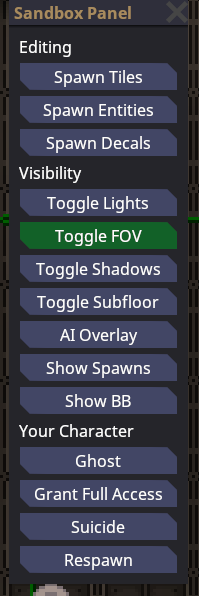
Useful mapping tools live here — especially tile placement, entity spawn, and decals.
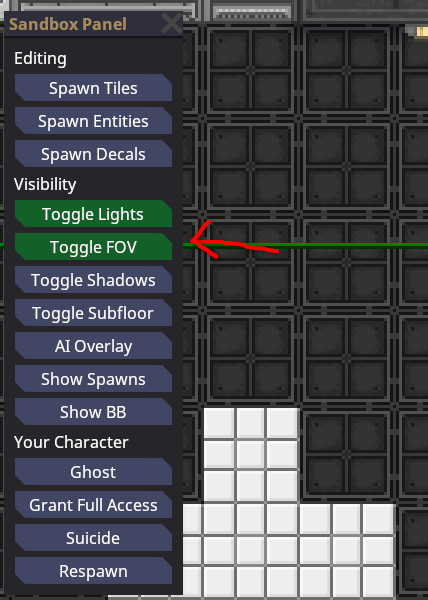
Turn Toggle FOV off while mapping so you can see the whole area you are editing.
Place tiles
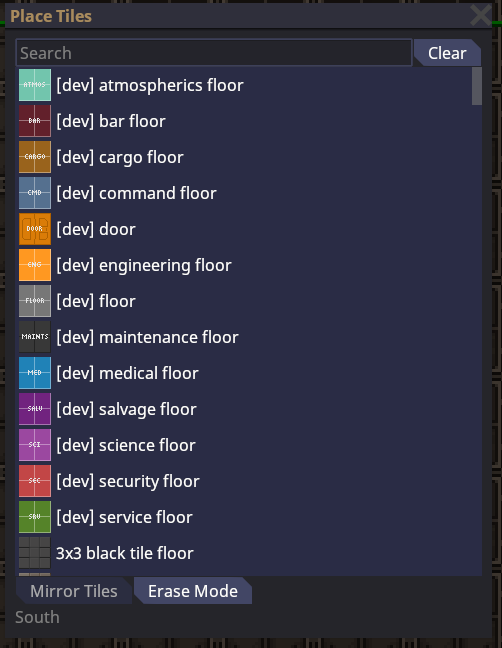
- Erase Mode deletes tiles.
- Left-click a tile type, then left-click in the world to place.
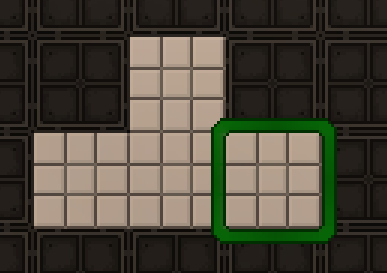
Ctrl + left-click paints a brush of tiles at once:
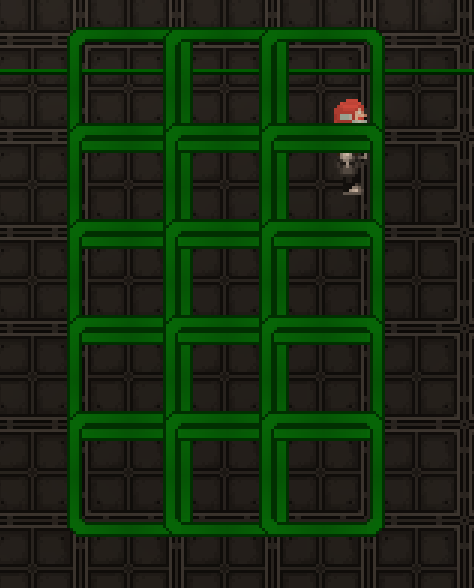
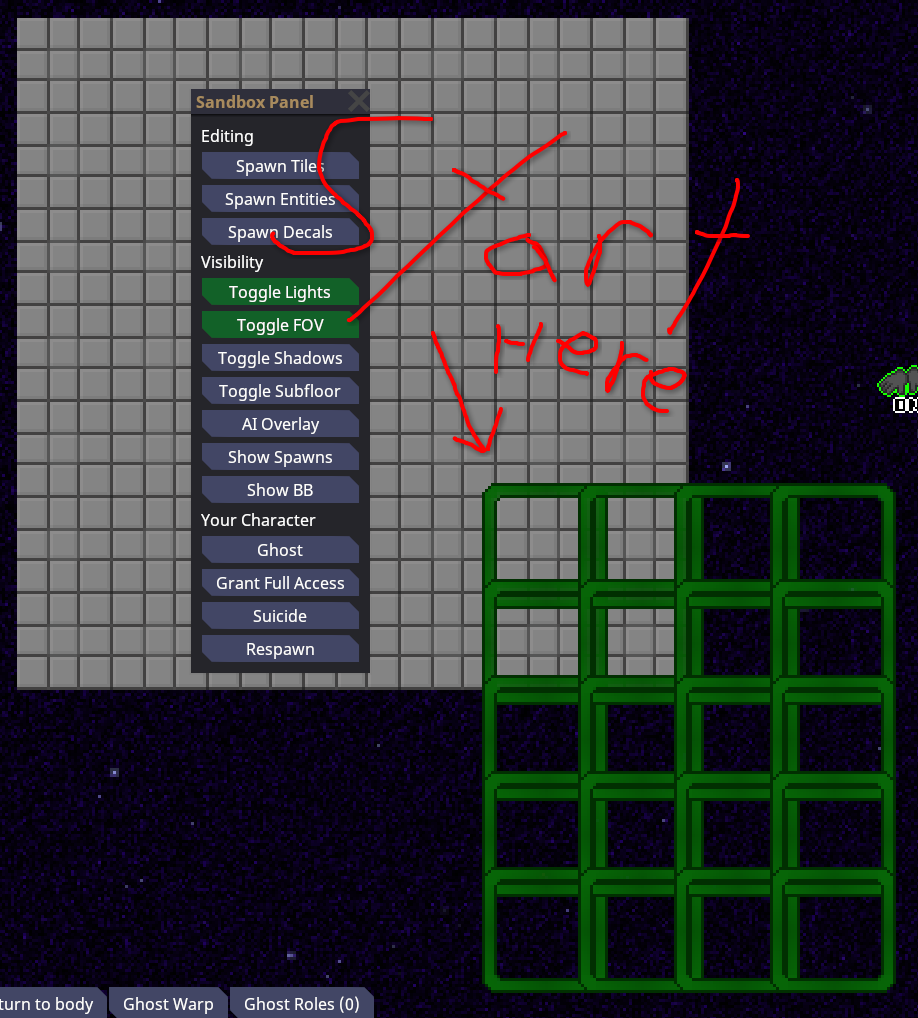
Do not use Ctrl + left-click to paint tiles into empty space. That creates separate unconnected grids. Walls, pipes, and cables will not connect across them.
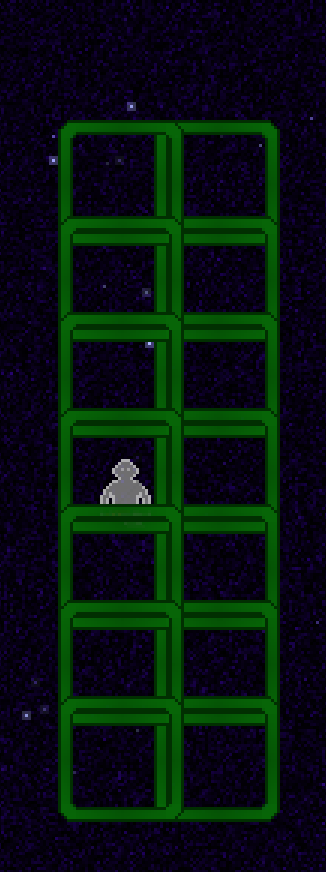
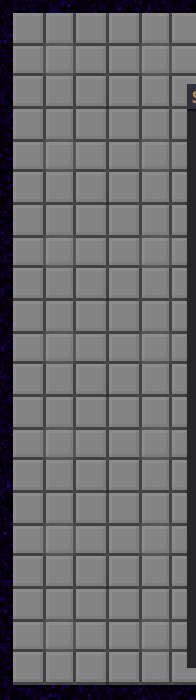
Always extend from existing tiles on the same grid:
Entity spawn panel
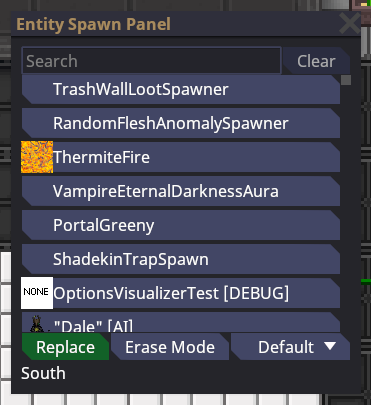
Enable Show Spawns in the Sandbox Panel first, or many spawn icons stay invisible. Left-click an entity in the panel, then left-click the map to place it.
While adminned (readmin if needed), right-click entities to inspect prototype ids:
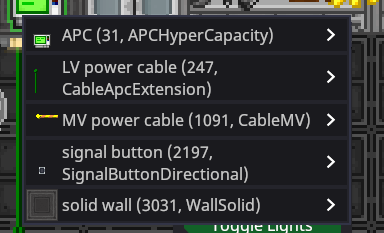
Load an existing Sol station (for example Cork, Saltern, or Reach under Resources/Maps/_Sol/Stations/) when you need reference entities.
Decal placer
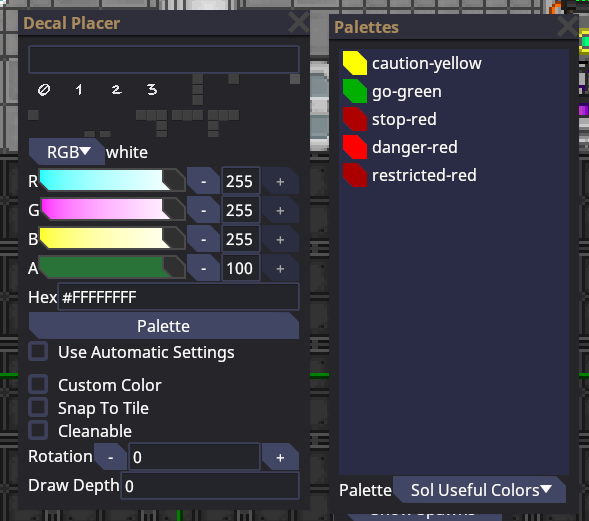
- Left-click places decals; right-click erases.
- Use the palette dropdown with Custom Color enabled.
For Sol station visuals, use the Sol Departmental and Sol Useful Colors palettes — see Mapping Colors.